Page Editor Options - Code Formatting Tab

Make sure you can see how your code is working for you, apply these settings and start as you mean to go on.
| Fig 1 (EW 1.0) |  |
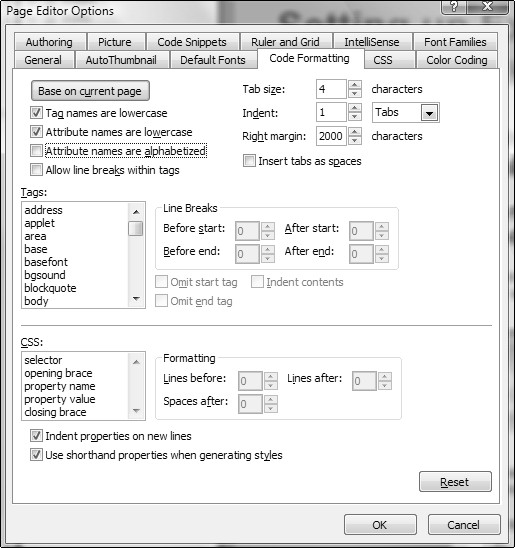 |
Fig 2 - (EW 2.0/3.0/4.0) |

Fig 3 (EW 4.0 SP2)
By setting your Code Formatting now you will be starting with a working environment that lets you get on with the job.
On the Tools Menu click the Page Editor Options and select the Code Formatting Tab.
Tag and Attribute Names
Firstly you should set the Tag and Attribute names to lowercase. XHTML requires lowercase coding and it's also best to keep a uniform look to your coding. Older versions of HTML allow upper or lower case, but if your looking to the future you should code for XHTML now, even if you don't intend to use it just yet.
Allow line breaks within tags
Make sure that the 'Allow line breaks within tags' is NOT ticked. Doing this ensures you won't have the problem of hanging </p> or </td> tags which can cause spacing problems in the content.
Tab Size, Indent and Right Margin
Tab Size - Tab Size determines how many characters wide each tab character appears in Code view. When we set Tab Size to 4, then each tab is displayed in Code view as a four-character-wide blank space. If we then set Indent to one, then code generated by Expression Web is indented using one tab character for every level of indentation, which appears in Code view as a four-character-wide blank space. We suggest setting Tab Size to 4.
It also sets the number of character spaces to indent when you press TAB in Code View. If you indent a line by pressing TAB, subsequent lines are indented as well. You can remove a line indentation using SHIFT + TAB.
Indent - Indent indicates whether code generated by Expression Web should be indented for the left margin for nested code (according to the indentation rules specified in these preferences) or not. We suggest indenting by one space.
Right Margin - Sets the size of the right margin for code. If we set it to 2000 it will prevent code wrapping.
Insert Tabs as Spaces
When this option is selected, indent operations insert only space characters, not tab characters. If the Indent size is set to 4, for example, then four space characters are inserted whenever you either press the TAB key or click the Increase Indent button on the Formatting toolbar. For our purposes this is left unchecked.
Tags
To set options for formatting particular tags, select the tag you want to format, and then under Line Breaks and beneath the Line Breaks section, set the options you want. For example, if you want to omit the closing list item tag </li> that normally appears after each list item, under Tags, select li, and then select Omit end tag. I prefer the default setting.
CSS
To set options for formatting particular components of CSS, select the component you want to format, and then under Formatting, set the options you want. For example, if you want a particular number of spaces to appear after the opening curly brace ({) that starts a style's declaration block, under CSS, select opening brace, and then specify the number of spaces you want in the Spaces after box. I prefer the default setting.
Indent properties on new lines
To indent CSS attributes that are written by Expression Web. This option should be selected.
Use shorthand properties when generating styles
CSS can be written in shorthand, for example when defining the values of the width, color and style of a border it can be written like so.
Longhand
#content{
border-bottom:1px solid #A9A9A9;
border-left:1px solid #A9A9A9;
border-right:1px solid #A9A9A9;
border-top:1px solid #A9A9A9
}
Shorthand
#content{
border:1px solid #A9A9A9
}
With this option selected, Expression Web will define the values of the width, color and style of a border by setting only the border attribute in the style. By using shorthand we reduce the weight of the CSS file.
What's New in Expression Web 2.0 & 3.0 with Code Formatting Tab?
Applies to Expression Web 2.0 & 3.0 Only New
Attribute Names are Alphabetized
'Attribute names are Alphabetized' unless you want to end up with your meta tags out of the order you set - in other words in A-Z order I recommend NOT having this selection ticked, which is set ticked by default. Existing tags in a page are affected by the new setting only if you apply the Reformat HTML command to the page if this setting is not turned off, so it is very important that you un-tick it before working with EW 2.0.or EW 3.0.
How do you apply code formatting settings to your page code?
In Code View right click and choose 'Reformat HTML' you will be amazed at how many errors this will correct. Used in conjunction with 'Optimize HTML' which is right next to it on the dialog box and if your using a XHTML doctype the 'Apply XML formatting rules' selection on the same dialog box, will drastically reduce your error report and save you a LOT of time.
Revised Sept 2011
Now Available: NEW: View a Web Site Summary - SuperPreview Online - Snapshot

Cheshire Web Designs - Cheshire website Designs by Any Expression Web Designs
Owner Any Expression Web Designs and Clarke Abstract Art
Copyright © 2006 - 2021 Tina Clarke of Any Expression Web Designs All Rights Reserved
Are you looking for a Web Designer?Web Designs created by Any Expression Web Designs